Installation
Install Python 3.8
Get the Python-installer here: https://www.python.org/downloads/
Run the installation and make sure your user-environment-variables contain the path to your python-installation.
Check the successful installation by running
python --version
It should output Python 3.8.10.
Install the cyberglove package
It is recommended to install all packages into a virtual environment, as packages like numpy can take up significant disk space.
Navigate into the cyberglove folder (not cyberglove/cyberglove/) and set the virtual environment up by running
python -m venv venv/
./venv/Scripts/activate
Note
If you get an error, it might be the problem that the activate-script is located in ./venv/bin/. For further information, please consider the official venv documentation.
Note
If you get a warning that you are not allowed to run the activation-script, please enable script-execution on your system. In the powershell, run
Set-ExecutionPolicy RemoteSigned
with administrator privileges.
This application uses pip as package-manager. Since Python 3.4, it is included by default with the Python binary installers.
Check if pip is installed by running
pip --version
Note
Please make sure you have the latest version of pip installed.
pip install --upgrade pip
pip --version
Now, install the cyberglove-package:
python setup.py install
Note
If you wish to be able to edit the source-files, install the package by creating symlinks by running
python setup.py develop
instead.
Verify your installation by starting python and running
import cyberglove
Install OpenSim 4.3
Note
The OpenSim python-API was tested on Windows 10 64-bit only.
Head to the OpenSim-website and download OpenSim 4.3. After the download has finished, install the software.
Next, navigate to your installation-folder of OpenSim (in our case, this is C:/OpenSim 4.3)
Step into sdk/Python, and run
python setup_win_python38.py
This should output the installation folder of OpenSim with /bin appended.
Now, add the displayed path to your system-variables (for both user and system):
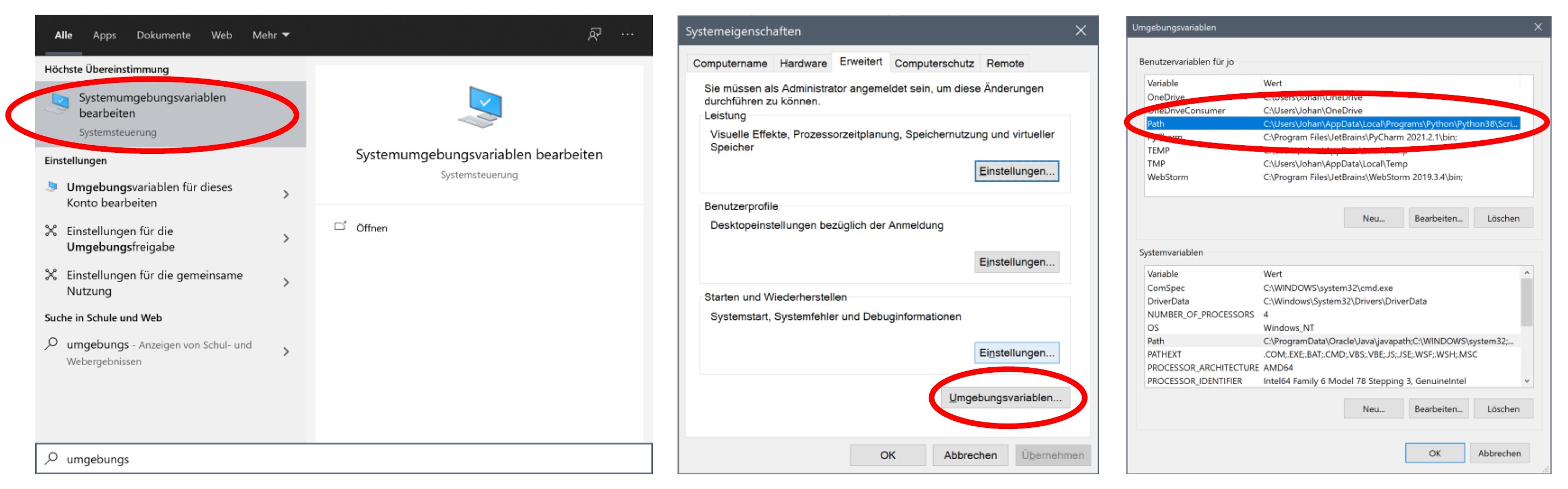
Setting up environment-variables
In the last step , install the OpenSim API:
Copy the folder Python under sdk/ to your folder of the package cyberglove.
There, (cyberglove/Python/) run
pip install .
This installs the opensim-package to your virtual environment.
After that, it is safe to delete the Python folder from your project.
Note
If you want to install the opensim package in your system, do not copy the Python-folder and only run
pip install .
in there.